Wristo FAQ

FAQ
Start here for Wristo installation, activation, purchase, settings, and troubleshooting help.
Find the situation that matches what you see on your watch, phone, or order page, then follow the steps for that issue.
Start with your current situation
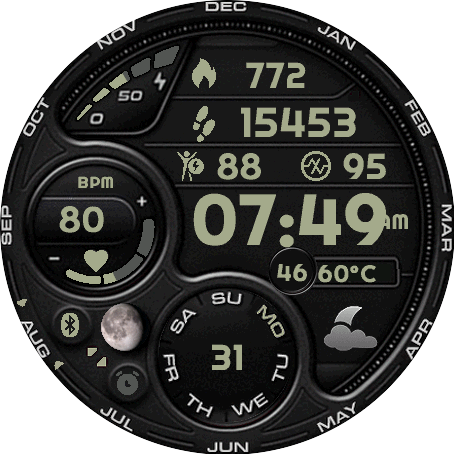
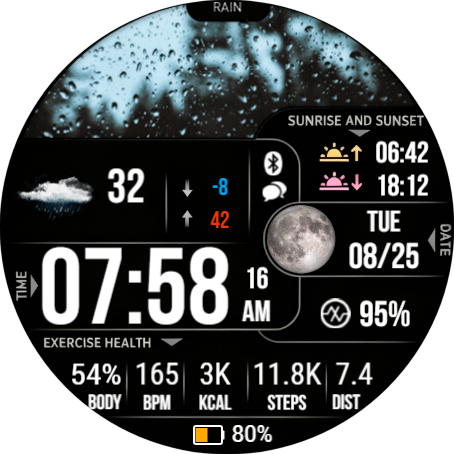
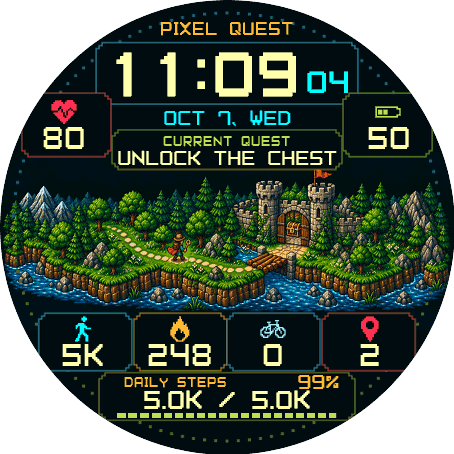
- You want to try a watch face: install it from Garmin Connect IQ, sync the watch, then open the watch face on the device.
- Your watch shows a six-digit code: open wristo.io/code, enter the purchase email and the code, then sync Garmin Connect.
- You already paid but see a payment prompt: sign in on wristo.io with the purchase email, then open wristo.io/en/code. You can also use Activate your purchase without signing in by entering the purchase email and the six-digit code shown on the watch.
- You want a refund or purchase record: check your history first, then contact support if the order is still unclear.
- The watch face crashes or shows IQ: update firmware, reinstall the face, and send the Connect IQ log if it continues.
Where to go next
- Confirm that your watch model is compatible with the watch face.
- Confirm that Garmin Connect / Connect IQ App is connected to the watch.
- If the issue involves payment or activation, use the original purchase email first.
- If the issue is a crash, keep the screenshot, watch face name, watch model, and firmware version.
Choose the topic that matches your issue: activation, purchases, installation and sync, settings, or IQ error troubleshooting.