
How to Keep Garmin Watch Connected to Connect IQ

Tips and Tricks
Learn how to keep your Garmin watch connected to Connect IQ by ensuring Bluetooth stability, syncing apps, and allowing background activity.
Your Garmin watch connects to your phone through the Garmin Connect app and installs third-party apps via the Connect IQ platform. To maintain a stable connection between your watch and Connect IQ, follow these steps:
1. Ensure Bluetooth Connection Is Stable
- Turn on your phone’s Bluetooth.
- In the Garmin Connect app, confirm the device shows as “Connected” (not “Syncing” or “Disconnected”).
- If connection issues occur, try selecting “Forget Device” and pair again.
2. Install and Use the Connect IQ App
- Download the Garmin Connect IQ app (iOS or Android) from the App Store or Google Play.
- Log in with the same account used for Garmin Connect.
- Make sure your watch model supports the apps you want to install.
3. Sync Connect IQ Content to the Watch
- In the Connect IQ app, select the watch faces, apps, or data fields you want to install.
- Tap “Install,” and Connect IQ will prompt you to sync.
- While your watch remains connected via Bluetooth, the content will sync automatically.
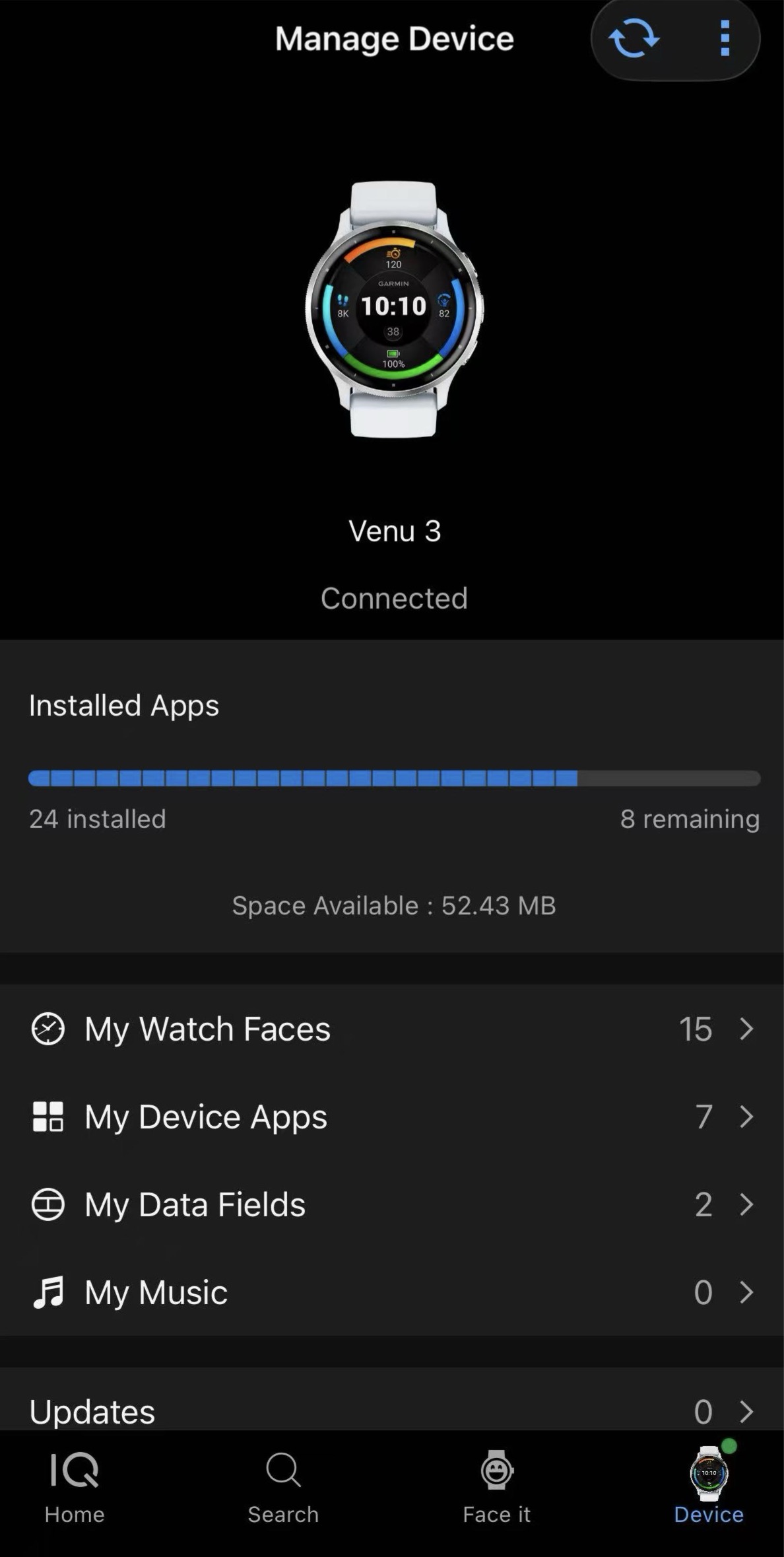
4. Keep Background Permissions and Disable Battery Optimization
- On Android: go to Settings > Apps > Connect IQ > Battery > Don’t optimize battery usage.
- On iOS: make sure both Garmin Connect and Connect IQ apps are allowed to run in the background.